Voice model
Try Modal
On this page
Set up the AI voice model on a Modal server. You only set it up once: no 3–5 minute startup every time like Colab, and no daily GPU limit.
Requirements
- The Neko Dub extension installed.
- A Google account (the setup notebook runs on Google Colab).
Video tutorial
Steps
1. Create a Modal account
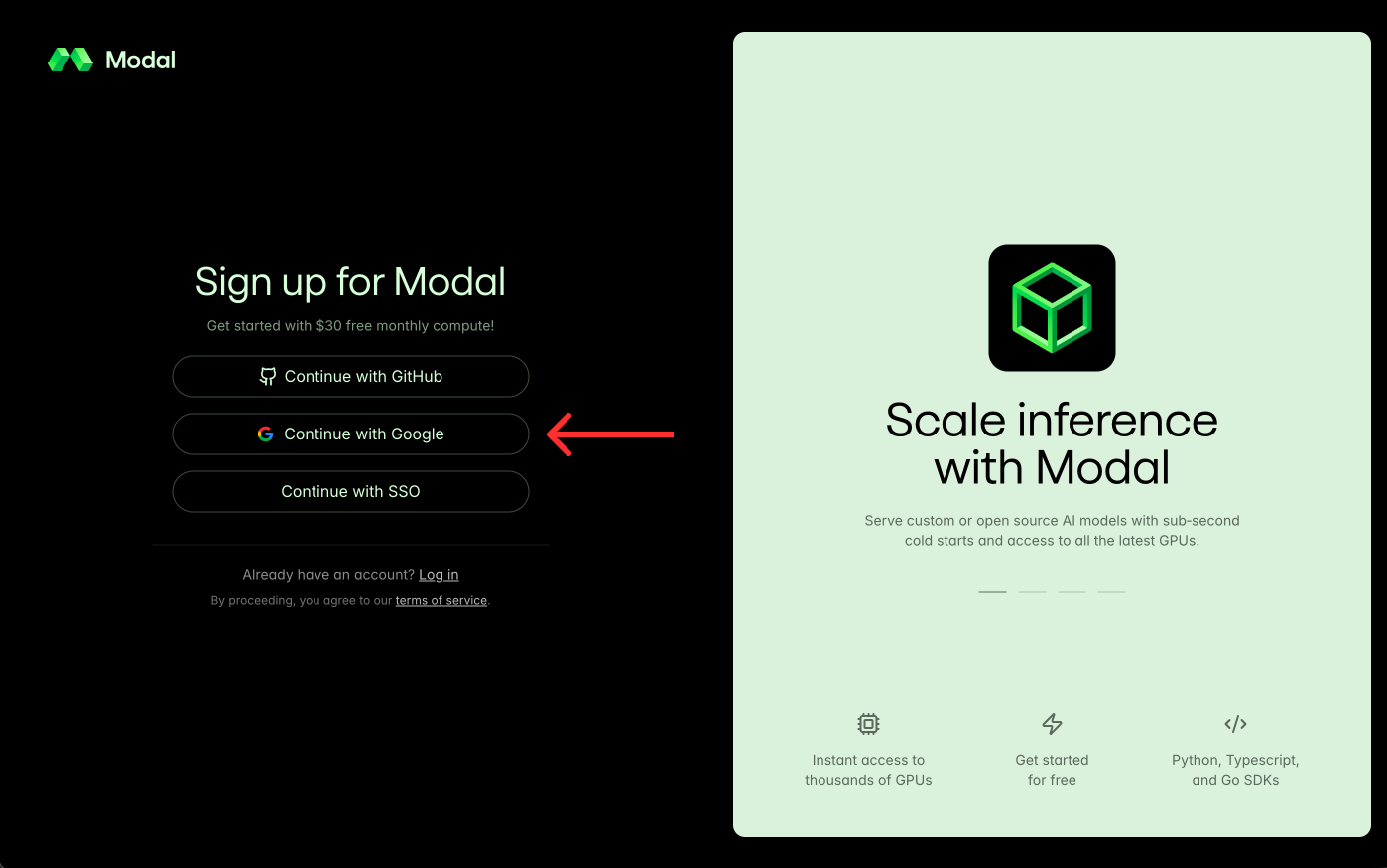
1.1 Open modal.com/signup and click Continue with Google to sign up with your Google account.
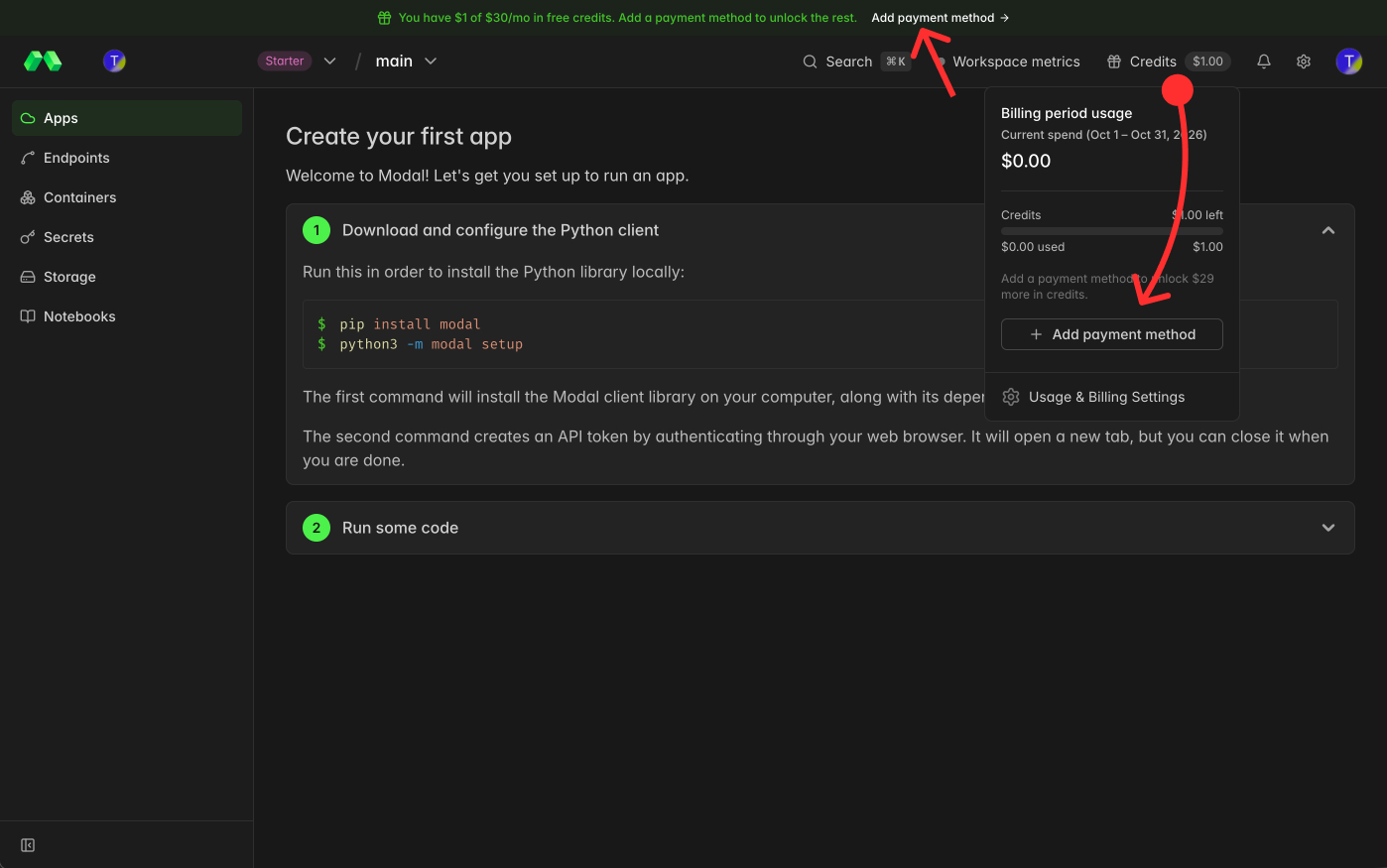
1.2 Click Add payment method in the banner at the top, or click Credits → + Add payment method.
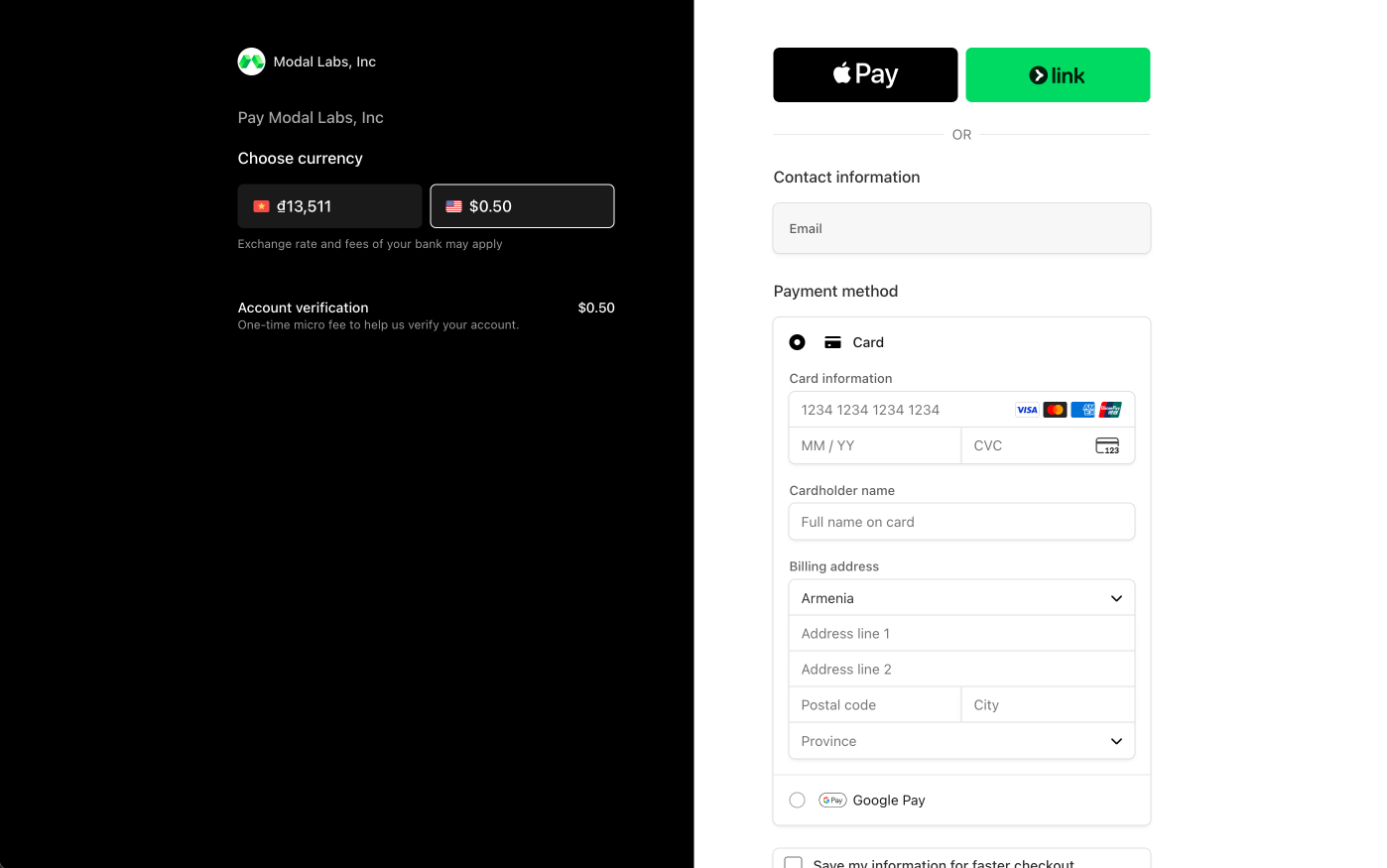
1.3 Modal opens the billing page: enter your card details or pick a payment method you have (Google Pay, Apple Pay…). Modal charges a one-time $0.50 to verify your account, then you get the full $30 free every month.
2. Create the server
2.1 Open the Neko Dub popup → Speaking Engine → Premium → Try Modal → Open setup notebook. Colab opens the notebook and the Neko Dub Modal Server panel appears on the left.
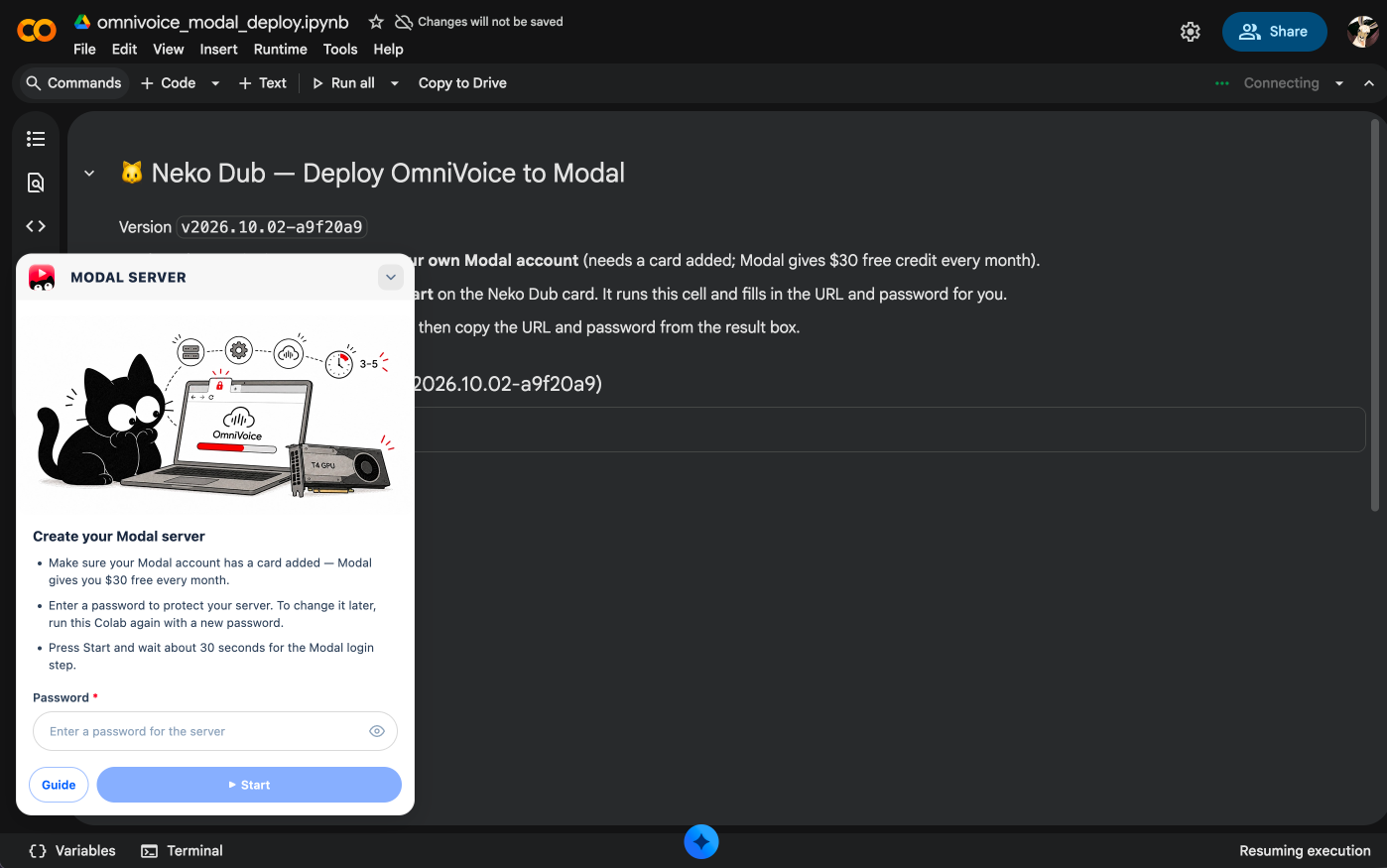
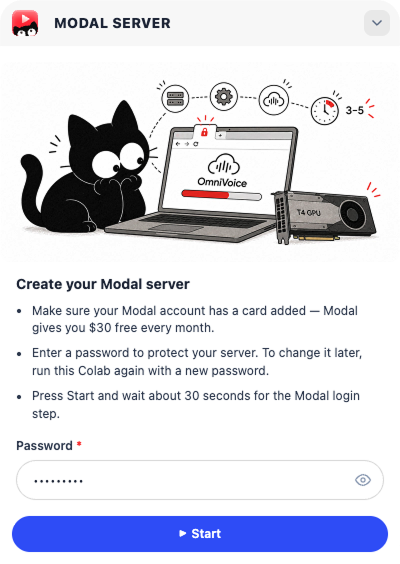
2.2 Enter a password → Start.
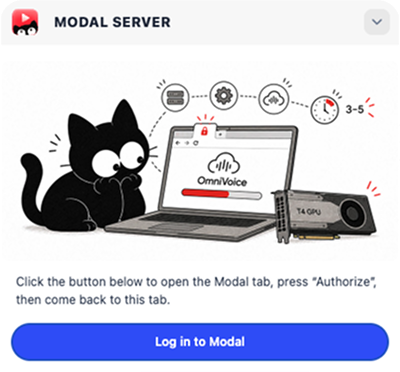
2.3 Click Log in to Modal.
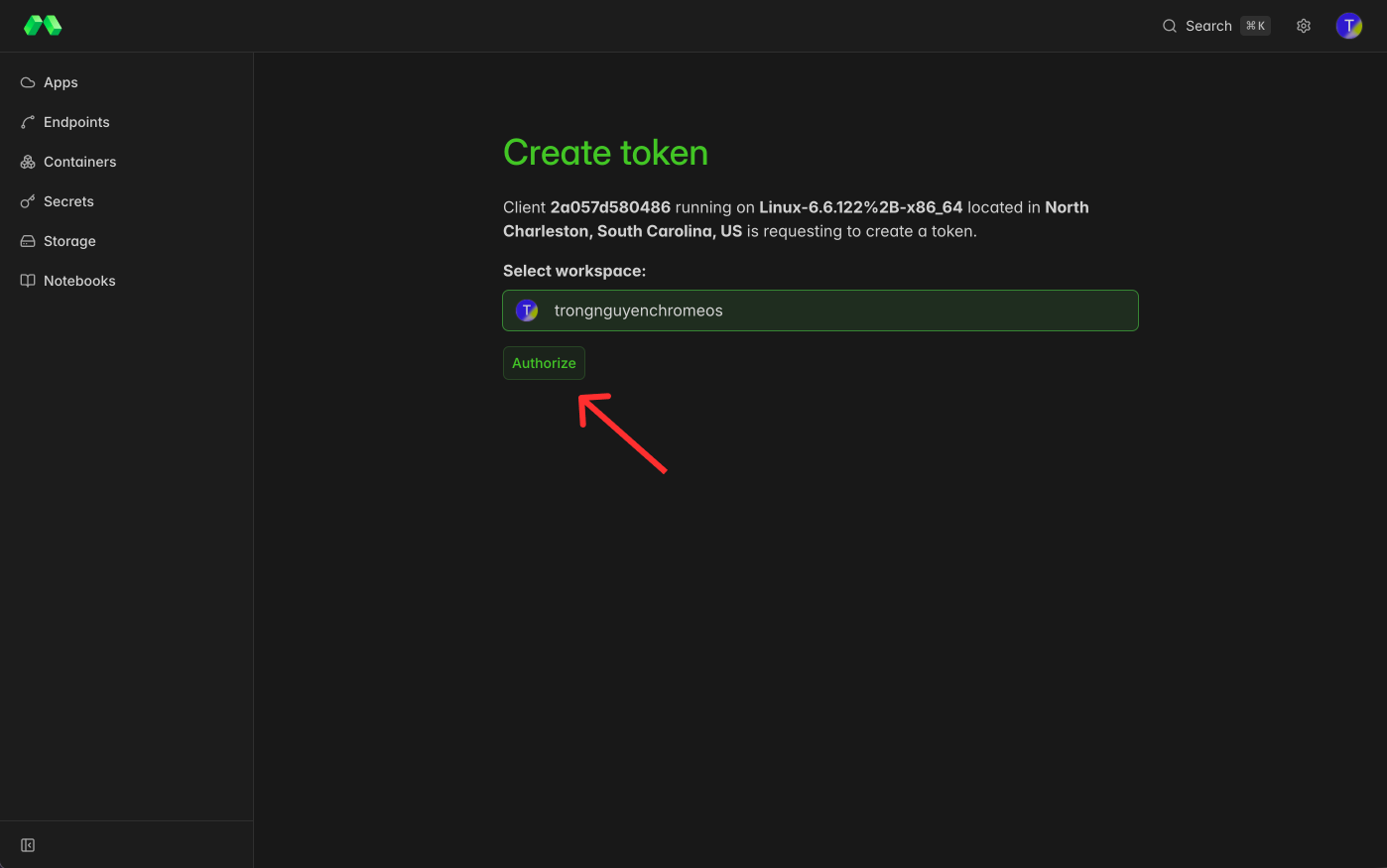
2.4 In the Modal tab, click Authorize, then come back to the Colab tab.
2.5 Wait about 5–6 minutes for Done! The URL and password are filled into Neko Dub automatically.
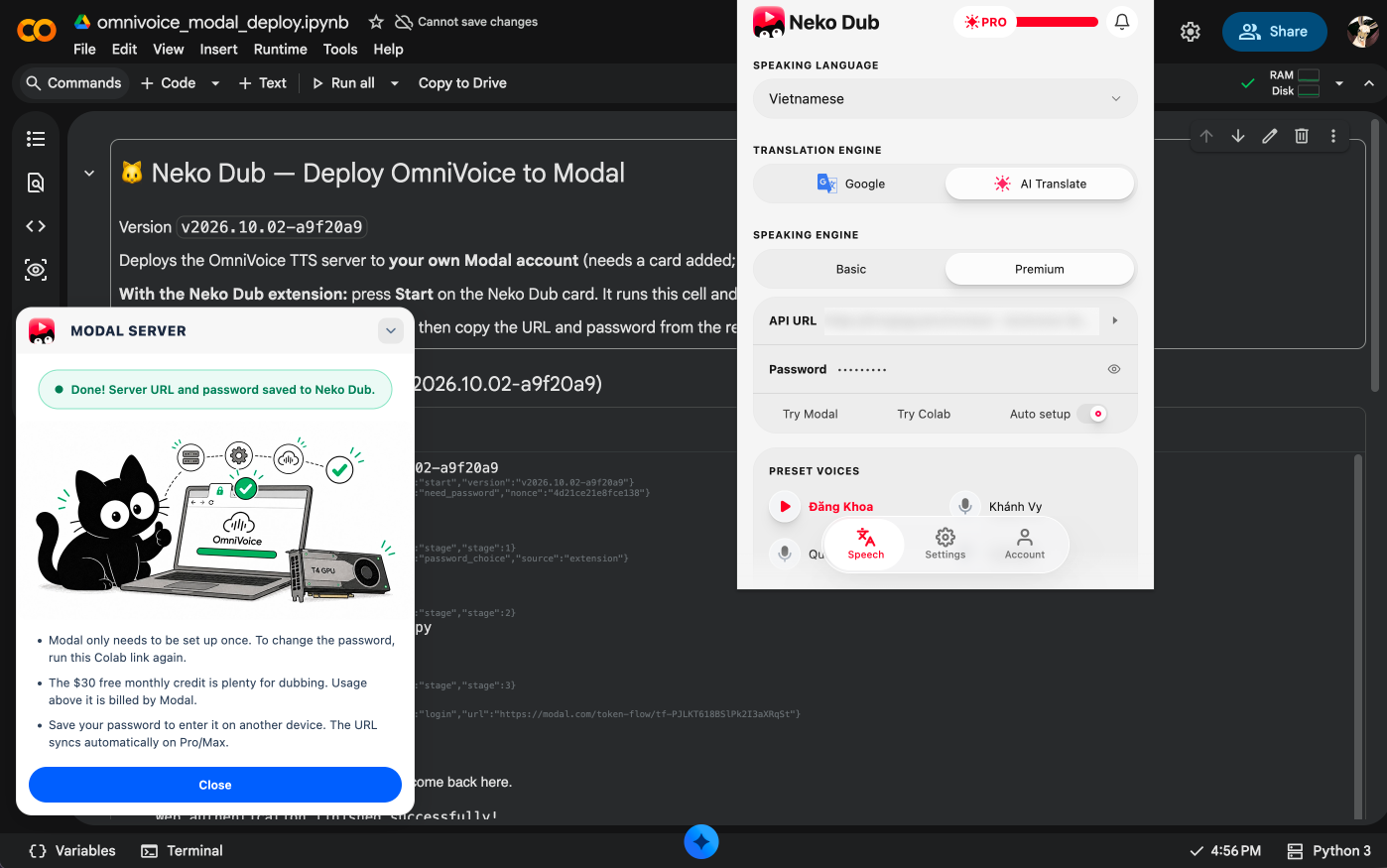
You can now close the Colab and Modal tabs. The server runs on Modal, so Neko Dub works without keeping Colab open.
If something goes wrong
- Vietnamese card declined: Modal takes payments through Stripe and currently blocks Vietnamese bank cards. Try paying on your phone: turn off Wi-Fi, switch on 5G mobile data, then open the billing page again.
- Server setup failed: click Retry. If it says a card is missing, add one on Modal, then click Retry.
Change password / other devices
- Change password: repeat step 2. Create the server with a new password.
- Other devices: passwords don’t sync between devices, so enter it in the Password field. The URL syncs automatically when sync is on for your account; if it doesn’t, also paste it into API URL.
FAQ
Does using Modal cost money?
Only a one-time $0.50 to verify your account. After that, Modal gives you $30 of free credit every month.
How does the Modal server run, and how is it billed?
- By default the server is off, so it costs nothing.
- When the extension calls it, the server starts up, taking about 10 seconds.
- The extension keeps calling it to generate audio until the video is finished.
- About 30 seconds after the video ends, the server shuts itself down.
You’re billed for the seconds it runs × $0.000164/sec (T4 GPU), plus a small CPU and RAM charge. To see exact numbers, dub a 2-hour video and check the pricing details on your Modal dashboard.
Could I go over $30 if I use my full monthly extension quota?
No. The server is configured so that even using up a whole month of the extension’s quota stays well under the $30 credit.